Introduction
AltDot is a lightweight Windows utility that runs in the system tray and gives you instant control over hidden files, file name extensions, and protected operating system files — without navigating through File Explorer Options.
Quickly toggle:
- Hidden files
- File name extensions
- Protected operating system files
Use global keyboard shortcuts to change visibility settings instantly.
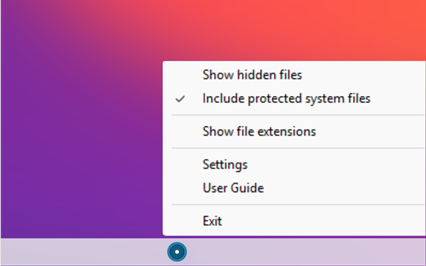
Tray Menu
AltDot runs in the system tray. Right-click the icon to open the menu. Double-click the icon to instantly toggle hidden files.
The three options are checkboxes. A check mark indicates that the option is currently enabled.
Hidden files — checked when hidden files are visible in File Explorer. Click it to show or hide hidden files.
Protected operating system files — controls whether protected operating system files are displayed when hidden files are enabled.
File name extensions — checked when file name extensions are visible. Click it to show or hide file name extensions.
These settings can also be changed directly from File Explorer. If you change them there, AltDot detects the changes and updates its icon and tooltip automatically, so the tray always reflects the actual Windows settings.
Tray Icon
The AltDot tray icon always reflects the current visibility status. The icon changes depending on whether hidden files are visible, and two small dots may appear along its right edge:
- Orange dot (top) — protected operating system files are visible.
- Black dot (bottom) — file name extensions are visible.
Each dot appears only while its option is active. Hovering over the icon displays a tooltip with the same information in words: one line for hidden files and protected operating system files, and one line for file name extensions.
Hotkeys
Global keyboard shortcuts work at any time, regardless of which application is active. The default shortcuts are:
-
 Toggle hidden files on/off
-
 Toggle file name extensions on/off
The . key is the period key (US) or full stop key (UK).
Hotkeys work even when AltDot is running in the background.
Both shortcuts can be changed in the Settings window. New shortcuts take effect immediately after pressing OK — there is no need to restart the application.
Settings
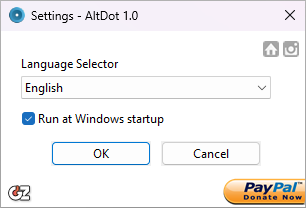
The Settings window lets you choose the language used by AltDot and decide whether it starts automatically with Windows.
It also includes links to the GDZ Software website, the AltDot website, and the donation page.
You can enable sound feedback whenever AltDot changes the visibility of hidden files or file name extensions.
The two hotkey fields define the global shortcuts for hidden files and file name extensions. Click a field and press the key combination you want to use. Keep the following points in mind:
- Clearing a field restores the default shortcut.
- If another application is already using the same shortcut, AltDot cannot register it and will notify you which shortcut could not be assigned.
Press OK to save the changes, or Cancel to discard them.
Notifications
AltDot periodically checks whether a newer version is available. When an update is found, a notification appears in the system tray; clicking it opens the download page.
AltDot may occasionally display important messages from GDZ Software, such as new versions or relevant announcements. Messages are displayed in the language you selected, one at a time, and each message appears only once.
Features
- Toggle hidden files, file name extensions, and protected operating system files.
- Configurable global hotkeys with immediate activation.
- System tray icon with visual indicators for hidden files, protected operating system files, and file name extensions.
- Tooltip showing the current visibility status of hidden files, protected operating system files, and file name extensions.
- Automatic detection of changes made in File Explorer.
- Optional sound feedback.
- Double-click the tray icon to quickly toggle hidden files.
- Update notifications and messages in your selected language.
- Option to run AltDot automatically with Windows.
- Available as installer and portable versions.
- Supports English, French, Spanish, Italian, Portuguese, German, Russian, Korean, Chinese, and Dutch.
- Compatible with Windows 10 64-bit version 1909 and later.
Support AltDot
If you find AltDot useful, you can support its continued development by making a donation via PayPal.
Thank you for using AltDot.