
How to open CustomFolder to change a folder's icon?
There are three ways to select a target folder:
— Open the program from the Windows menu and drag a folder onto the window.
— Right-click a folder in Explorer and choose CustomFolder from the
context menu.
— With the app already open, drag another folder onto the window at any time to change the target.
Selecting a target folder enables the Apply and Reset buttons, and the folder name appears below the icon preview.

How to add external icons to the personal collection?
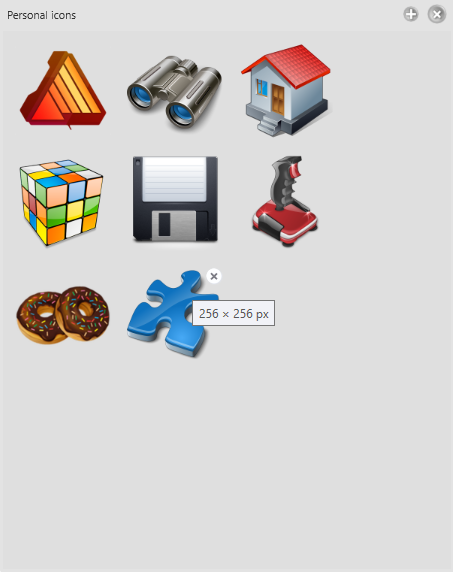
1. Click the Icons button to open the personal icons panel.
2. Drag ICO or PNG files onto the panel.
The icons are added to your collection and sorted alphabetically. PNG files are automatically converted to ICO format when applied.
How to use shortcut keys
- Space Toggle between primary and secondary color
- T · Shift+T Next / previous decorative window background
- C · Shift+C Next / previous color palette
- Y · Shift+Y Next / previous color scheme
- Z · X Previous / next template
- V Rotate icon (if the template supports it)
- F Show / hide the folders panel
- E Show / hide the emblems panel
- I Show / hide the icons panel
- G Show / hide the settings panel
- M Toggle the context menu between light and dark
- F1 Show the keyboard shortcuts help window
- Esc Close the active panel or dialog
- Alt+F4 Save and close the application
How to select colors?
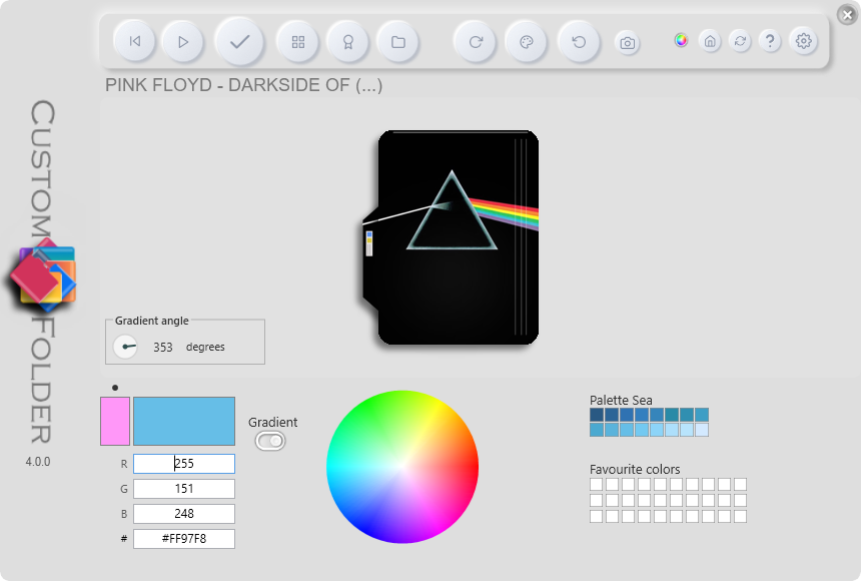
CustomFolder uses two colors at once: primary (the folder body) and secondary (the tab, on templates that support it). The Space key toggles between them; a marker dot above the selectors indicates which color is currently active.
Ways to pick a color:
— Color wheel — click or drag on it.
— Palette — click a color; cycle through palettes with C or the
Palette
button.
— Favorite colors — click a saved slot (see section 9).
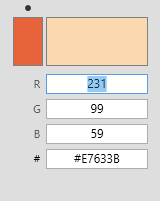
— RGB panel — enter values from 0 to 255 in the R, G and B fields, then confirm with
Enter or Tab.
— Hex field (v4) — enter the color as #RRGGBB (for example,
#3A7BD5) and press Enter; the R, G and B fields update automatically (see section 19).
Alt + click — changes the secondary color.
Ctrl + click — changes the window background color (the solid color behind the window; not the decorative background image — see section 17).
Shift + click — changes the preview background.
How to use an icon from the personal collection?
1. Open the panel with the Icons button. If your collection is empty, first
add external icons (see section 2).
2. Left-click the desired icon to apply it to the target folder.
Other actions inside the panel:
— Right-click — remove the icon from the collection (with confirmation).
— Middle-click — open the icon storage folder in Explorer.
— Hover over an icon to show an × button for removing it.
How to clone the icon from an existing folder?
1. Open the personal icons panel (Icons button).
2. Drag a folder that already has a custom icon onto the panel.
The icon is added to your collection; then click it to apply it to other folders.
How to use an image as the icon background (wallpaper icon)?
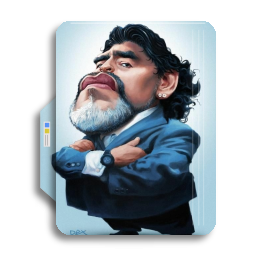
Drag a JPG file onto the icon preview to use it as the active template’s background. Non-square images are scaled to fit within a 256 × 256 px canvas.
To adjust the image position, zoom, and rotation, see section 8.

How to precisely position a PNG or JPG image? (v4)
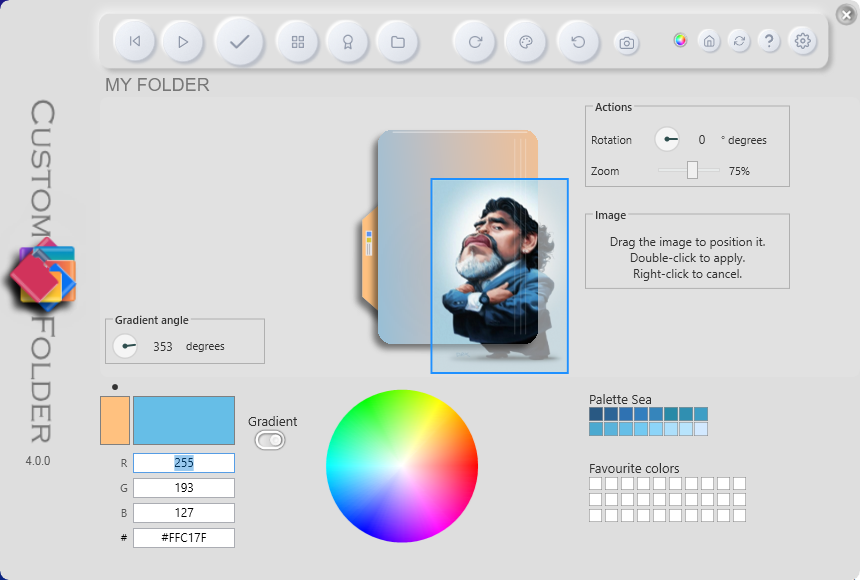
1. Drag a PNG or JPG file directly onto the icon
preview.
2. A draggable semi-transparent box appears over the preview.
3. Drag it to place the image precisely; the preview shows the composited result in
real time.
4. Adjust the size and angle using the transform panel (see section
12).
5. Double-click to apply the position permanently.
6. Right-click to cancel positioning and restore the previous preview.
Transparent PNG pixels are correctly composited over the icon color (they do not turn black).
How to save and delete favorite colors?
There are 30 favorite color slots on the right side of the window.
— Save: scroll the mouse wheel over a slot to save the active color to
it.
— Use: left-click a slot.
— Delete: right-click a slot.
How to create a music folder icon?
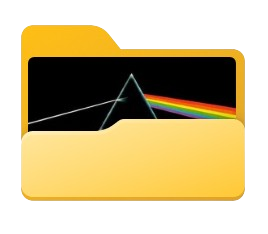
CustomFolder automatically detects whether the target folder contains a folder.jpg file and uses it as the icon background when you drag the folder onto the window. No additional action is needed — just click Apply to save.
How to add an emblem to the icon?
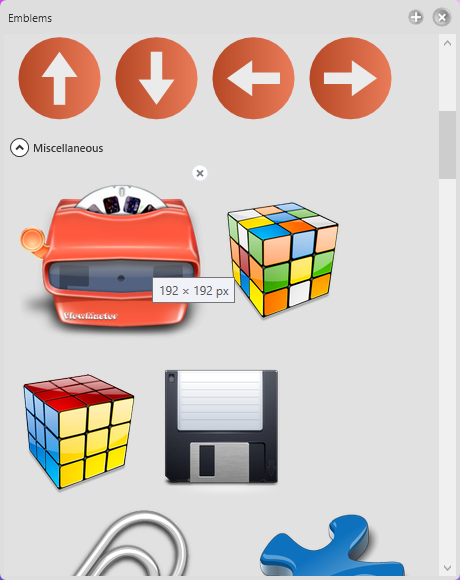
1. Open the panel with the Emblems button. Emblems are grouped into expandable
categories (v4): Status, Colors, Directions, Misc, Numbers and Personal.
2. Click the desired emblem: it appears as a floating overlay on the preview and the transform panel
activates.
3. Adjust its zoom and rotation using the transform panel (see section
12).
4. Place it in one of two ways:
— Drag the overlay to the exact position on the icon (free/floating position),
or
— Choose a cell in the 3×3 position grid.
5. Click Add.
6. Repeat to add more emblems (up to a maximum of 9 per icon).
7. Click Apply in the main window to save the result.
How to adjust the size and angle of an emblem or image (transform panel)? (v4)
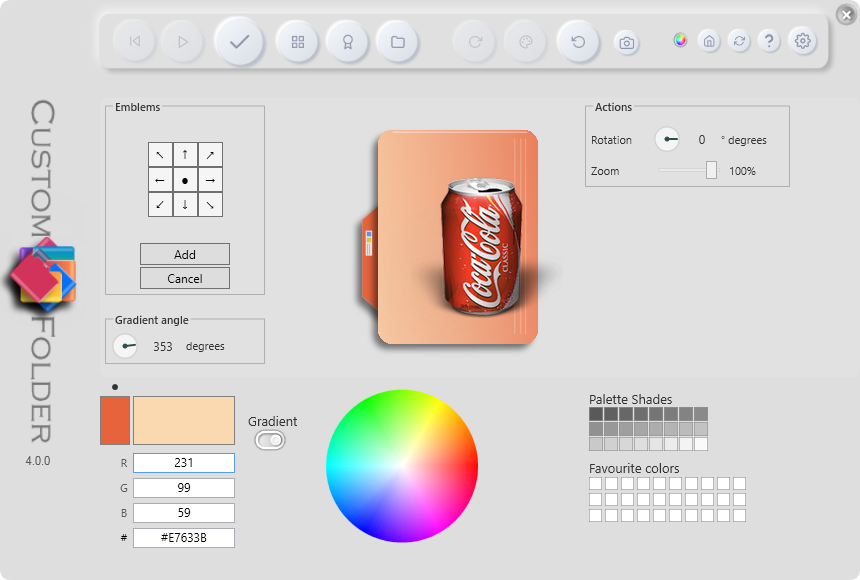
The transform panel is shared by the floating PNG mode (section 8) and the emblem mode (section 11). Its controls work the same way in both:
— Rotation circle — drag the indicator to set the angle (0–359°). The mouse wheel over
the circle also adjusts it.
— Degrees field — enter the angle and press Enter.
— Zoom slider — adjusts the scale from 30% to
110%.
— Mouse wheel over the overlay — increases or decreases the scale in 5% steps.
— Percentage label — shows the current zoom level.
How to add personal emblems?
Drag PNG images onto the emblems panel:
— Images larger than 160 × 160 px are automatically resized on import.
Actions inside the panel:
— × button on hover, or right-click — remove the emblem.
— Middle-click — open the emblems folder in Explorer.
Why is the emblem not applied to the icon?
The emblem is not added until you press the Add button inside the emblems panel. Clicking an emblem only places a floating preview on the icon — it does not add it permanently. After positioning and adjusting the emblem, always press Add before clicking Apply in the main window.
How to apply a design to several folders at once?
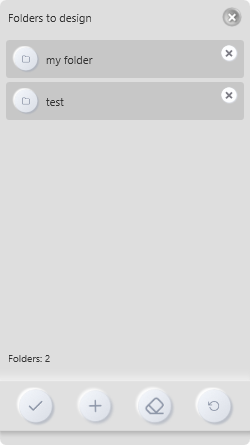
1. Click the Folders button or press F.
2. Drag one or more target folders onto the panel.
3. Click Apply inside the panel to apply the active design to all of them.
4. Use Remove to remove individual folders and Clear to empty the
list.
5. Middle-click a folder in the list to open it in Explorer.
How to apply a color scheme? (v4)
A color scheme changes the primary color, secondary color, window background, preview background, and gradient angle all at once. There are 26 named schemes.
— Click the Scheme button in the toolbar to switch to the next one.
— Hold Shift and click the button to go back to the previous one.
— You can also press the Y key to switch to the next one, and Shift+Y
to go back to the previous one.
— You can also choose a scheme by name in the Themes submenu of the context menu
(right-click the window body).
The selected scheme is saved automatically.
How to change the decorative window background? (v4)
Apart from the color schemes, the window can show a decorative background image. Press T (with the emblems and icons panels closed) to cycle through 8 background options: no background and 7 built-in images. It only changes the window’s appearance; it does not affect the icon colors or the active scheme. The selected background is saved.
How to use the gradient between colors? (v4)
1. Click the Gradient button to turn it on (the indicator switches between ✗ and ✓).
2. The preview shows a gradient between the primary and secondary colors.
3. Adjust the angle (0–359°) in any of these ways:
— Drag the circular indicator of the angle control.
— Use the mouse wheel over the control.
— Enter the value in the text field and press Enter.
4. To turn it off, click the Gradient button again.
The angle is saved with the design and restored on restart.
How to enter a color by hexadecimal code? (v4)
In the RGB panel there is a # field. Enter the color in #RRGGBB format (for example #3A7BD5) and press Enter or Tab. The R, G and B fields update automatically.
How to rotate the icon?
Press V or click the Rotate button to rotate the icon. It only works on templates that support rotation; on others, the button is disabled. If an image is applied as the background, rotation also affects the image.
How to change the preview background color?
— Double-click the preview area to cycle through a set of preset background colors.
Useful for comparing the icon against different desktop backgrounds.
— You can also use Shift + click on the wheel or palette to set that color as the
preview background.
How to restore the default Windows icon?
Select the target folder and click the Reset button to restore the default Windows icon.
How to enable portable mode?
Portable mode is enabled by default and can be toggled in the Settings panel. In this mode, a folder keeps its design even when it is used on another computer that does not have CustomFolder installed.
How to enable rounded edges? (v4)
Open the Settings panel and enable Rounded edges. It applies rounded corners to the main window and all floating panels. It is enabled by default in v4.
How to show or hide emblem categories? (v4)
1. Open the Settings panel.
2. Turn Show emblem categories on or off.
When categories are visible, the panel groups emblems into expandable sections (Status, Colors, Directions, Misc, Numbers, Personal). When categories are hidden, emblems are shown in a continuous list.
How to make the context menu entry require Shift?
CustomFolder integrates automatically into the Windows folder context menu. If you want the entry to appear only when holding Shift while right-clicking:
1. Open the Settings panel.
2. Enable Use Shift in the context menu.
How to change the application language?
1. Open the Settings panel.
2. Select a language from the list (there are 11 languages available).
The change takes effect when the application restarts.
How to view the gallery of created designs?
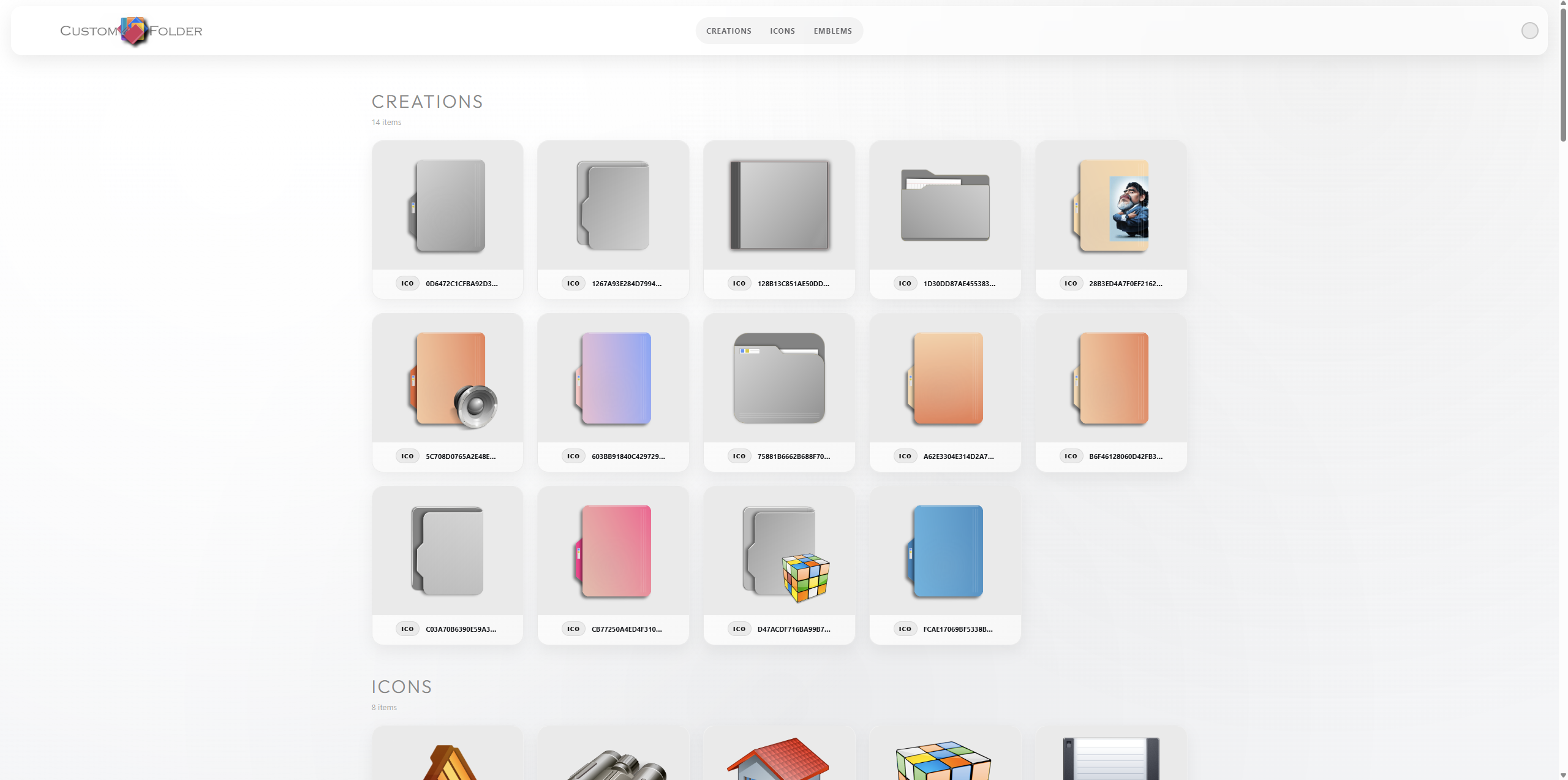
Click the Gallery button. An HTML page is generated with all the designs you've created, your personal icons, and your emblem collection, and it opens in your default browser.
How to close panels and dialogs?
— Panels (icons, emblems, settings, folders): click the same button that opened them,
the panel’s close icon, or press Esc.
— Dialogs / messages: press Esc or click the main window background.
How to remove personal icons or emblems?
Open the corresponding panel (icons or emblems), right-click the item and confirm its deletion. You can also use the × button that appears on hover.
How to check for updates?
On startup, CustomFolder checks online for a newer version; if one exists, it shows an update link in the window. You can force a check using the Update button in the toolbar, which opens the download page in your browser. The app may also display notifications from the author during the session.
How to open the online tutorial and the author's site?
— Help button or User guide entry in the context menu → opens the
online tutorial.
— GDZ button or GDZ Software entry in the context menu → opens the
author’s website.
How to synchronize icons through OneDrive or another cloud service?
For folders shared in the cloud, local icon changes do not propagate automatically to other users. This feature monitors changes while the app is open and notifies you when another user applies a new icon.
Computer A (owner):
1. Apply the design to the folder.
2. Open the synchronized folders panel from the context menu (Folders
sync).
3. Drag the folder onto the panel.
4. Share the folder with the user on Computer B — it will be uploaded to OneDrive.
Computer B (recipient):
1. Open OneDrive online, go to Shared, find the folder, right-click it, and select
Add shortcut to My files. OneDrive will download the folder to the PC.
2. Open CustomFolder and add the folder in the synchronized folders panel as described
above.
Tip: in the synchronized folders panel, middle-click a folder in the list to open it in Explorer.
The icon is not visible on network drives
Some Windows updates prevent custom icons from being displayed on network folders. Microsoft documents the procedure to enable this here.
Icon not updating after applying a new one
This is a Windows icon cache issue. The usual fix is to delete the IconCache.db files in %localappdata% and restart Windows Explorer. Microsoft provides instructions for rebuilding the icon cache here.