Overview
GDZ Flip Clock is a split-flap desktop clock: it displays the time on split-flap cards that flip as the digits change, like the old airport departure boards. You can customize the colors, font, and language, run it in a window, use it as a desktop widget, or display it in full-screen mode — and even use it as a Windows screen saver.
New in version 1.2
- Resize the desktop widget — the borderless widget window now has an invisible grab border, so it can be resized by dragging any edge or corner, just like the other window modes.
- Fill window (Options → Window) — makes the clock occupy all the available space instead of keeping its aspect ratio, so the cards and digits are as large as possible, at the cost of a slight distortion if the window isn't shaped like the clock.
Getting started
- Run FlipClock.exe.
- The clock starts in the Classic Dark theme, with no border and centered on the screen.
- On startup, you'll briefly see the F1 Help message: press F1 at any time to view the list of shortcuts.
- Right-click the clock to open the menu (Themes, Timer, Options, Help, Exit), or press O to open Options directly.
Only one instance of Flip Clock can run at a time. Launching it again simply activates the existing instance. To close the app, press Esc or right-click and select Exit.
The clock screen
The clock interface consists of the following elements:
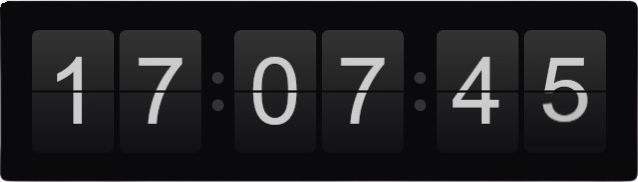
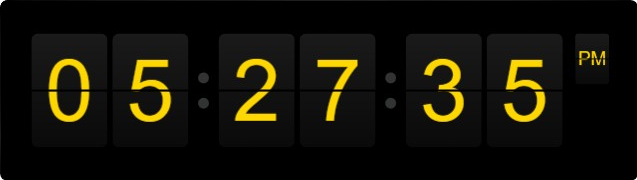
- Time cards — one card per digit, or a single wide card for each pair of digits (hours, minutes, and optionally seconds). Each digit changes with a split-flap folding animation. By default, each pair is displayed on a single wide card, the way a real split-flap board shows a number.
- Separators — the colon : between time groups. Hidden by default: with each pair on one card the groups are already visually distinct.
- AM / PM — an extra card that appears only in 12-hour format.
- Date (optional) — a line below the time showing the weekday, date, month, and year in your language.
The time is read directly from the system clock, so it is always in sync with Windows and never drifts.
The Options window
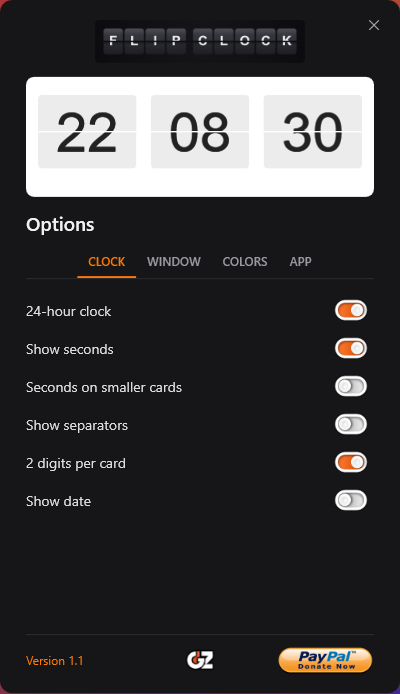
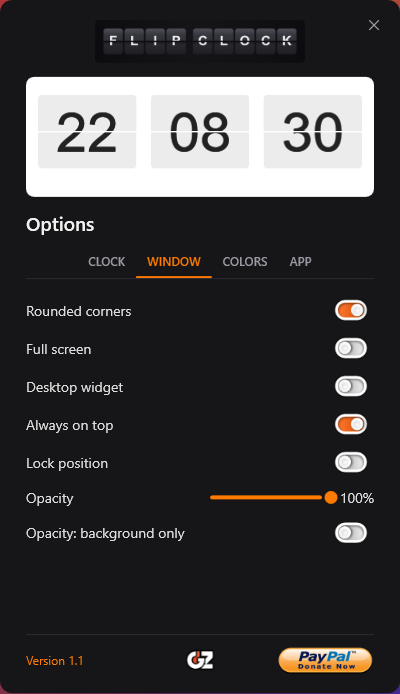
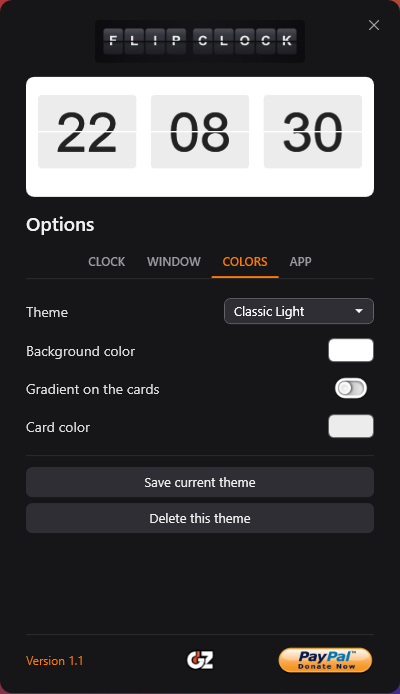
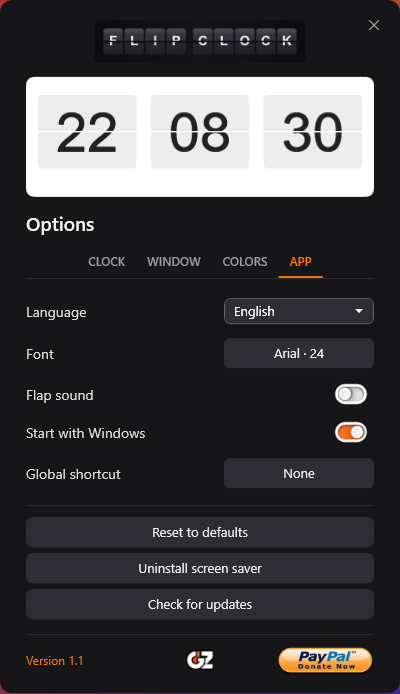
Open it by pressing O or from the context menu. All changes are applied immediately and saved automatically. A Live Preview updates in real time to reflect the current configuration. Options are grouped into four tabs: Clock, Window, Colors, and App.
Clock
| Option | Description |
|---|---|
| 24-hour clock | On: 24-hour format. Off: 12-hour format with an AM/PM card. |
| Show seconds | Shows or hides the seconds group. |
| Seconds on smaller cards | Shows the seconds group at a smaller size to emphasize the hours and minutes (only applies when seconds are shown). |
| Show separators | Shows or hides the : between groups. |
| 2 digits per card | Displays each pair (HH, MM, SS) on a single wide card instead of two separate cards. |
| Show date | Adds the date line below the time. |
Window
| Option | Description |
|---|---|
| Rounded corners | Rounded window corners (optional, Windows 11 style). |
| Full screen | The clock fills the entire screen. |
| Desktop widget | Borderless window pinned to the desktop background; not shown in the taskbar or Alt+Tab switcher. Resizable by dragging its edges, via an invisible grab border. |
| Always on top | Keeps the clock in front of other windows. |
| Lock position | Locks the clock's position and size, so the window can no longer be dragged or resized. |
| Opacity | Slider from transparent to fully opaque. |
| Opacity: background only | Applies the opacity to the background alone and keeps the cards fully opaque. |
| Fill window | Makes the clock fill the available space instead of keeping its aspect ratio, maximizing the size of the cards and digits. |
Colors
| Option | Description |
|---|---|
| Theme | Selector containing the 21 preset palettes, followed by any theme you have saved yourself; picking one applies it immediately. |
| Background color | The color behind the cards (Windows color picker). |
| Gradient on the cards | On: the card face goes from one color to another. Off: flat color. |
| Primary card color | The first card color (or the only one, if the gradient is off). |
| Secondary card color | The second gradient color (visible only with the gradient on). |
| Gradient angle | A 0°–360° slider that controls the gradient direction (visible only with the gradient on). |
| Save current theme | Saves the current colors as a named custom theme, listed apart from the built-in ones and shared with the screen saver. |
| Delete this theme | Removes the selected custom theme (the built-in themes cannot be deleted). |
The text color adjusts automatically to maintain contrast with the cards; themes that include a custom text color override it.
App
| Option | Description |
|---|---|
| Language | Language of the interface and the date (see Languages). |
| Font | Opens the Windows font picker to choose the typeface and the size of the digits. |
| Flap sound | Plays a split-flap click whenever a card flips. Off by default, and always silent in screen saver mode. |
| Volume | Volume of the split-flap click and the timer alarm, 0–100. Releasing the slider plays one click so you can hear the level you just set (visible only with the sound on). |
| Only on minute change | Clicks once a minute instead of on every card flip. With the seconds on screen the clock otherwise ticks every second (visible only with the sound on). |
| Start with Windows | Launches the clock automatically when you sign in. |
| Global shortcut | Key combination that shows and hides the clock even when it does not have the focus. Press the button and then the combination you want; None by default. If another program already owns that combination, the app says so and leaves the shortcut unset. |
| Reset to defaults | Returns every setting to its original state (your language and your custom themes are kept). The screen saver's own profile is dropped as well, so it starts again from these settings. |
| Install / Uninstall screen saver | Registers or removes the clock as a Windows screen saver. |
| Check for updates | Manually checks whether a newer version is available and notifies you. |
Countdown timer
Press F2 — or pick Timer from the right-click menu or from the notification-area icon — to open the countdown panel. It docks beside the clock, without covering any other panel already open.
- Duration — two fields, h (0–23) and min (0–59), so the longest countdown is 23 h 59 min. Type the digits, use the arrows beside each field, or step them with ↑ and ↓. 90 minutes is entered as 1 h 30, not as 90 in the minutes box.
- Start begins the countdown; while it runs the button reads Stop, the panel shows the time left, and the duration fields are fixed.
- The countdown itself runs on its own split-flap cards, so it never takes the time off the clock. They show MM:SS, or H:MM:SS while more than an hour is left, and they use the clock's colors, font and theme.
- They appear beside the clock, avoiding overlap with the clock itself and with any open panel (Options, Help, or the timer). This ensures they never cover either the time or the window you were using.
- Drag the cards anywhere. The app remembers their position and uses it again next time, as long as the space is still free: if the clock or a panel has moved over it in the meantime, the cards go back beside the clock instead of overlapping them. They stay above other windows so the countdown is never buried, and they are not shown in the taskbar.
- The last duration used is remembered too, so the panel opens ready to run it again.
When the time is up: the cards stay on screen showing 00:00, the alarm tone starts, the clock comes to the front — even if it was hidden with the global shortcut — and a "Timer finished" notice appears in the clock's own split-flap style, positioned beside the cards so it never covers what it is announcing. Dismissing the notice stops the tone and hides the cards.
Closing the panel (Esc, F2 or its ✕) does not stop a running countdown — reopen it to see the time left or to stop it. Pressing Esc on the cards hides them without stopping it either; only Stop ends the countdown.
Color themes
There are 21 ready-to-use themes. Choose them from the right-click Themes submenu (with thumbnails and live preview), or from the Theme selector in the Options window.
Each theme defines the background color, the two card colors (with or without gradient), and the text color. After applying a theme, you can continue adjusting the colors manually in the Colors section.
Custom themes
Once you have the colors the way you like them, press Save current theme in Options → Colors and give them a name. Your custom themes are listed after the built-in ones, in the theme selector and in the right-click Themes submenu, and Delete this theme removes the one selected — the 21 built-in themes cannot be deleted. Saving again under an existing name updates that theme instead of piling up duplicates.
Custom themes are shared between the desktop application and the screen saver. The clock remembers which theme is in use by name, so two themes with identical colors remain distinct.
Window modes
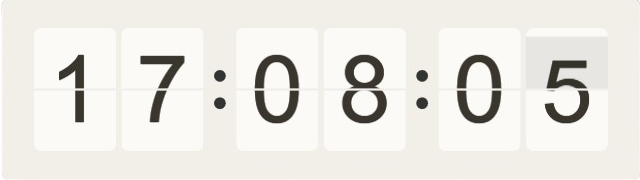
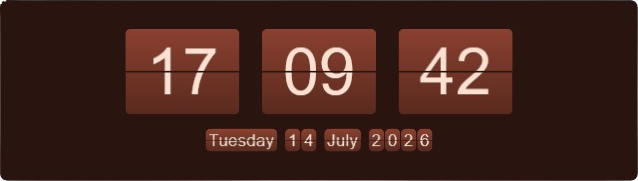
Flip Clock supports four window modes, which can be enabled from the Options window or with keyboard shortcuts:
| Mode | How it behaves | Shortcut |
|---|---|---|
| Borderless window | Small window with no border; move it by clicking and dragging anywhere on it. | — |
| Full screen | Fills the entire screen and hides the cursor. | F11 |
| Desktop widget | Borderless window with no taskbar or Alt+Tab entry, pinned to the desktop background. Resizable via an invisible grab border on its edges. | W |
| Always on top | Stays above other windows. | T |
- The window can be resized freely by dragging its edges — including in desktop widget mode, via an invisible grab border.
- The clock remembers its size and position between sessions (in window mode).
Using it as a screen saver
Flip Clock can also be installed as a Windows screen saver.
Install: open Options (O), press Install as screen saver, and the Windows Screen Saver Settings window opens with FlipClock already selected — leave it selected and click OK. No administrator rights are required: it installs only for your user account.
While active: the clock covers all monitors in full-screen mode. Any key press, mouse click, or mouse movement closes it, like any screen saver.
Uninstall: go back to Options and press Uninstall screen saver.
Languages
The interface and the date line are available in 10 languages: Spanish, English, French, German, Italian, Portuguese, Russian, Korean, Chinese, and Dutch.
Choose the language in Options → Language. If you don't select one, the app uses your Windows language; if your Windows language isn't available, it falls back to English. The change is immediate: menus, options, help, and the date line all switch to the selected language.
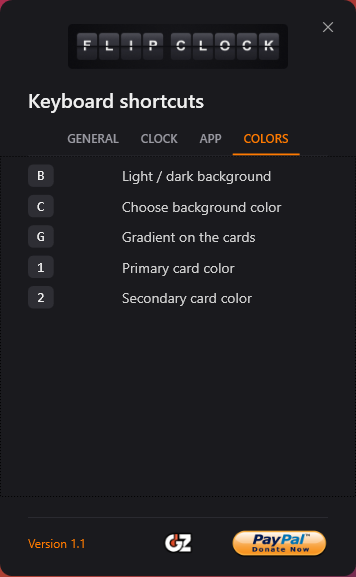
Keyboard shortcuts
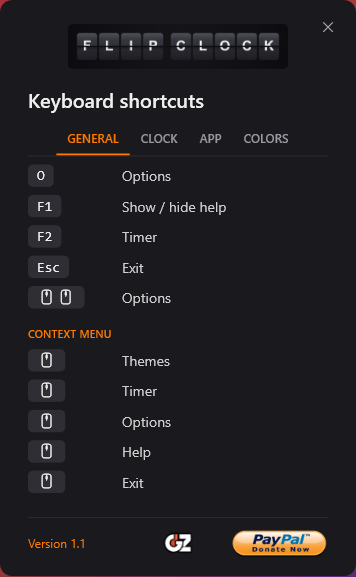
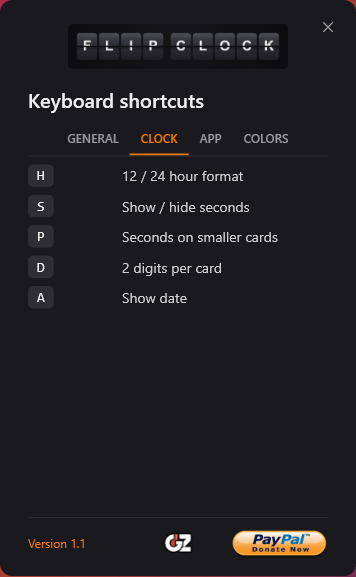
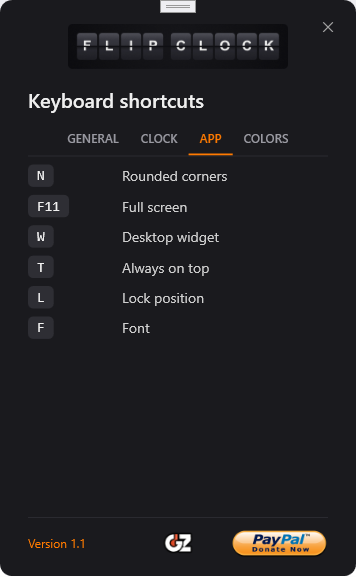
Press F1 at any time to view this list inside the app.
| Key | Action |
|---|---|
| O | Open/close Options |
| F1 | Open/close Help |
| F2 | Open/close the countdown timer |
| Esc | Exit |
| Double-click the clock | Open Options on the Clock tab |
| H | Toggle 12/24-hour format |
| S | Toggle seconds |
| P | Toggle compact seconds cards |
| D | Toggle 2 digits per card |
| A | Toggle date display |
| N | Toggle rounded corners |
| F11 | Toggle full screen |
| W | Toggle desktop widget |
| T | Toggle always on top |
| L | Lock/unlock position and size |
| F | Choose the font of the digits |
| B | Toggle light/dark background (quick switch) |
| C | Choose background color |
| G | Toggle gradient |
| 1 | Choose primary card color |
| 2 | Choose secondary card color |
Language, update checks, separators, and reset are configured from the Options window.
These keys only work while the clock has the focus. The global shortcut set in Options → App is the exception: it shows and hides the clock from anywhere. It is a simple toggle — with the clock on screen but buried, the first press hides it and the second brings it back in front. The notification-area icon is the other way back to a clock pinned behind other windows: double-click it.
Updates & notices
The app can optionally check for a newer version in the background and show messages from the developer. You can force the check with Options → Check for updates. If there is no internet connection, no update check is performed: the clock keeps working normally.
Frequently asked questions
| Question | Answer |
|---|---|
| Do I need an internet connection? | No. An internet connection is only used optionally to check for updates. |
| How do I close it when there is no border or taskbar? | Press Esc, or right-click and select Exit. In widget mode you can also use the right-click menu. |
| Can I keep the clock behind my windows? | Yes: enable Desktop widget (W). |
| I changed too many things and want to start over. | Options → Reset to defaults. Your custom themes stay where they are. |
| Does the countdown stop if I close its panel? | No. The panel only contains the controls: closing it, or hiding the cards with Esc, leaves the countdown running. Only Stop ends it. |
| Will the alarm ring with the Flap sound off? | Yes. The two are independent; the alarm uses the Volume level from Options → App. |
| The clock disappeared after I pressed the global shortcut. | That shortcut hides and shows the clock: press it again to bring it back. You can also double-click the notification-area icon. |
| The ticking every second is too much. | Turn on Only on minute change in Options → App, or lower the Volume. |
| Do the screen saver and the clock share settings? | No, each has its own settings file, so you can configure them separately. |
| The digits look blurry. | The app handles display scaling (DPI) to keep the clock sharp on high-resolution displays; if you just switched monitors, restarting the app usually fixes it. |
Option reference
All of these options are set from the interface; this table summarizes their names, what they control, and their default values.
| Option | What it controls | Default |
|---|---|---|
| 24-hour clock | 24-hour or 12-hour (AM/PM) format | 24 h |
| Show seconds | Seconds group visible | Yes |
| Seconds on smaller cards | Draws the seconds group at a reduced size | No |
| Show separators | The : between groups | No |
| 2 digits per card | Pair of digits on a single card | Yes |
| Show date | Date line below the time | No |
| Font | Typeface for the digits | Arial |
| Background color | The color behind the cards | #1C1C1C (Classic Dark) |
| Primary card color | The first card color | #333333 |
| Secondary card color | The second gradient color | #101013 |
| Gradient on the cards | Gradient or flat card face | Yes |
| Gradient angle | Gradient orientation (0–360°) | 90° |
| Text color | Color of the digits | #CCCCCC (from the theme; automatic contrast when a theme leaves it unset) |
| Rounded corners | Rounded window corners | Yes |
| Full screen | Full-screen display | No |
| Desktop widget | Pinned to the desktop background | No |
| Always on top | In front of other windows | Yes |
| Lock position | Ignores dragging and resizing | No |
| Opacity | Window opacity (%) | 100 |
| Opacity: background only | Fades the background and leaves the cards solid | No |
| Fill window | Fills all available space instead of keeping the aspect ratio | No |
| Theme | Preset color palette | Classic Dark |
| Language | Interface and date language | Automatic (Windows) |
| Flap sound | Click whenever a card flips | No |
| Volume | Volume of the split-flap click and the timer alarm (0–100) | 60 |
| Only on minute change | Clicks once a minute instead of every second | No |
| Global shortcut | System-wide show/hide combination | None |
| Timer duration | Countdown length, up to 23 h 59 min | 5 min |
| Start with Windows | Launches at sign-in | No |
Supporting development
If you find Flip Clock useful and would like to support its continued development, you can make a donation via PayPal by scanning the QR code below.
Thank you for using Flip Clock.