What FileSkin does (and what it doesn't)
FileSkin changes the icons Windows uses to show your file types
(.zip, .mp4, .docx…), and restores the originals
whenever you want.
How it works. Windows keeps a record in the registry of which icon belongs to each file type. FileSkin writes the icon you choose there and saves the previous setting, so it can always restore it.
- No administrator rights are needed. Changes are saved in your own part of the
registry (
HKEY_CURRENT_USER). - It only affects your Windows user. Other accounts on the same PC keep seeing the icons they always had.
- It does not change which program opens each file. A
.zipstill opens with the same app; only its icon changes. - It installs nothing into Explorer and leaves no processes running. When you close FileSkin, nothing stays behind.
Why icons are changed "per file type" and not per extension
Many apps use a single file type for several extensions. 7-Zip, for example, usually
registers .7z, .rar, and .zip under one type with one icon.
That's why, in FileSkin:
- Each row represents a file type and shows every extension that shares it.
- Changing the icon for that row changes it for all of those extensions at once.
Other apps (Access, for instance) register a separate type for each extension. There, you will see one row per extension, and you can give each one a different icon.
The main window
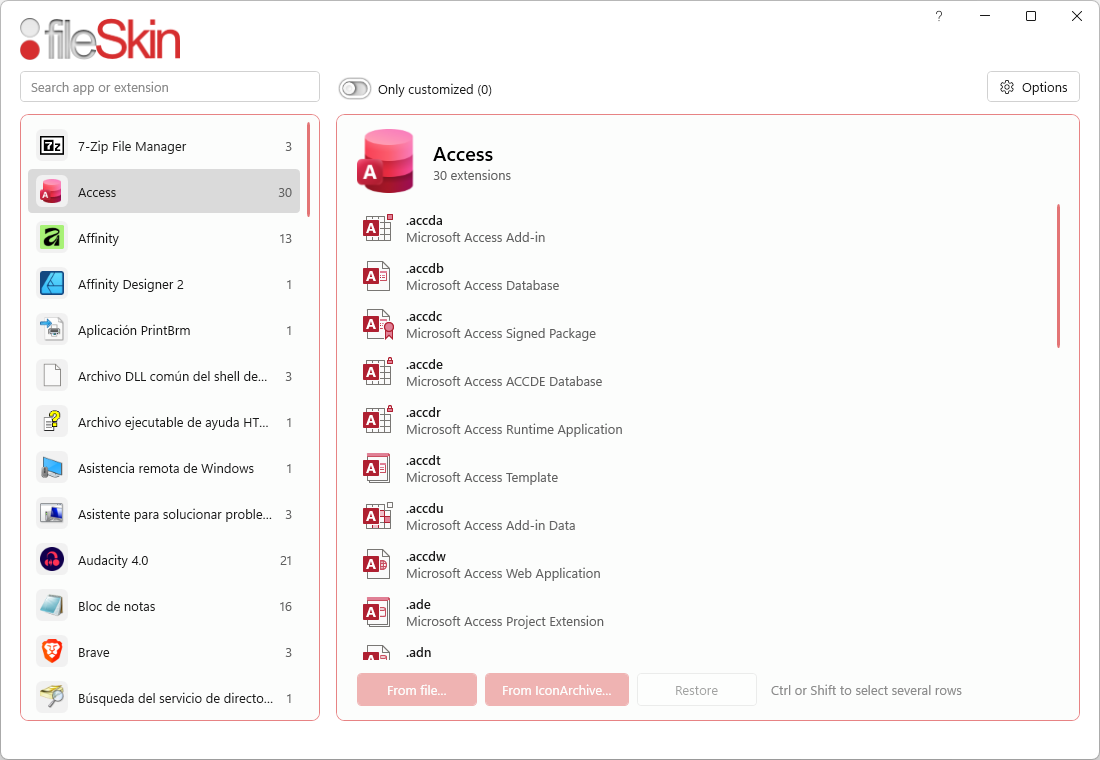
| Area | What it is for |
|---|---|
| Search box | Top left. Filters by app name or extension — 7-Zip, .mp4,
mp4. The X on the right (or the Esc key) clears
the search.
|
| Only customized | A switch that shows only the types whose icon you changed. It is the quickest way to review or undo your changes. |
| ? | Top right, next to the minimize button. Opens this guide in your browser. |
| Options | Language, updates, export/import, restore all, icon cache and more — see Options. |
| App list | On the left. Each app is shown with its icon and the number of extensions assigned to it. |
| App panel | On the right. Shows the name and icon of the selected app, plus one row per file type with its icon, extensions and description. |
| Status bar | At the bottom. Shows the number of apps and extensions, and displays the result of each action for a few seconds. When a new version is available, a link appears there. |
The window has no title bar: drag it from any free area (the background, logo or text) to move it, and drag the edges to resize it. ?, minimize, maximize and close are in the top-right corner.
Row labels
- Custom (grey with red text): you changed that icon and it is currently applied.
- Missing (pink with red text): you changed that icon, but it is no longer showing. Hover over the label to find out why — see Missing icons.
Row actions
Selecting a row reveals links underneath its description:
- From file… — choose an icon from your PC.
- From IconArchive… — look for an icon on the internet.
- Reapply — available when the icon is Missing because another app replaced it.
- Restore — available when the row is customized.
Two more shortcuts:
- Double-click a row to use From file…
- Select several rows at once with Ctrl (one by one) or Shift (a range), then use the buttons at the bottom (From file…, From IconArchive…, Restore). The same icon is applied to all of them.
Changing an icon
From a file on your PC
- Select the row and click From file… (or double-click the row).
- Choose the file. These file types are accepted:
| File type | What FileSkin does |
|---|---|
.ico |
Uses it directly. FileSkin keeps its own copy, so the change does not break if you later move or delete the original. |
.exe, .dll |
If the file contains several icons, the Windows picker opens so you can choose one. The file is not copied: FileSkin uses it from its original location. |
.png, .jpg, .jpeg, .bmp |
Converts it into an icon with every size from 16 to 256 px. The image is centred without being stretched, and the spare space is left transparent. Maximum 20 MB. |
Then check the preview and confirm with Apply.
.exe and .dll: if you later uninstall or move
that program, the icon will stop showing and the row will become Missing. If you want an icon
that does not depend on another program, use a .ico file or an image.
From IconArchive (internet)
- Select the row and click From IconArchive…. A browser opens inside FileSkin at iconarchive.com, with a notice explaining these steps. If you tick Don't show again, the notice will not appear again. You can bring it back with Options → Show hidden messages.
- Find the icon you like and open its page.
- Click All Download Formats, then Download ICO. Only ICO downloads are accepted.
- The browser closes automatically and the preview appears.
The browser toolbar has Back, Forward, Reload and Clear cache. Clear cache deletes the browsing data that FileSkin has stored.
The preview
Before applying any icon, FileSkin shows you how it will look:
- Sizes: 16, 24, 32, 48 and 96 px — the sizes Explorer uses for lists, details, medium icons and large icons.
- Backgrounds: light and dark, so you can check that the icon stands out in both Windows themes.
- Will be applied to: the extensions that will be changed.
- Warnings, when applicable:
- No small sizes: the icon may look blurry in lists and bars.
- No large sizes: the icon may look pixelated in large-icon views.
- The image was converted into an icon: shown when you chose a PNG, JPG, JPEG or BMP.
Click Apply to confirm, or Cancel to leave everything as it was.
Restoring the original icon
- One row: select it and click Restore.
- Several rows: select them with Ctrl or Shift, then use the Restore button at the bottom.
- Everything at once: Options → Restore all…
Which icon does it restore?
Always the one that was there before you first used FileSkin on that file type, even if afterwards:
- you changed the icon several times,
- another app replaced it,
- or you reapplied it.
An example:
.ziphad the 7-Zip icon (A).- You change it to your icon (B).
- You update 7-Zip, and the installer replaces it with its new icon (C).
- You reapply B, or choose another icon (D).
- Restore → back to A.
"Missing" icons and Reapply
A row is marked as Missing in two cases:
| Reason (shown on hover) | What happened | What you can do |
|---|---|---|
| Windows or an application replaced this icon. | An installer, update or Windows repair restored the file type's icon. | Reapply to put yours back, or Restore to return to the original. |
| The icon file no longer exists. | The copy of the .ico was deleted, or the .exe or
.dll the icon came from was uninstalled or moved.
|
Choose a new icon (From file… or From IconArchive…), or Restore. |
When FileSkin starts, if it detects replaced icons, it asks whether you want to reapply them all. If you answer No, they stay marked as Missing so you can decide what to do with each row individually.
Options
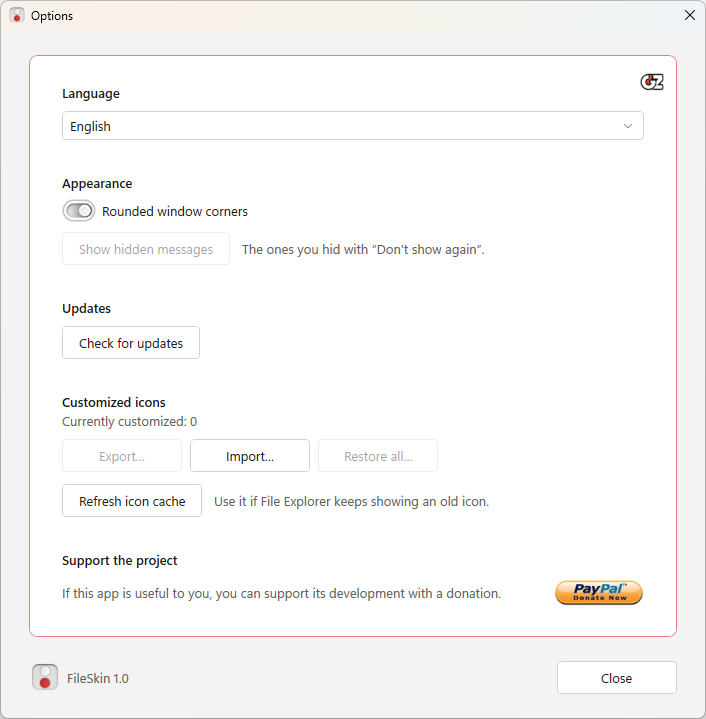
| Option | Description |
|---|---|
| Language | English, Español, Français, Deutsch, Italiano, Português, Nederlands, Čeština, Русский, 한국어 and 中文. The app restarts when you change it. |
| Rounded window corners | A switch for rounded corners (the default) or square ones. Applies instantly. Requires Windows 11; on Windows 10, the option is disabled. |
| Show hidden messages | Brings back notices you previously hid with Don't show again — the IconArchive steps, for example. Disabled when there are no hidden notices. |
| Check for updates | Checks for a new version. FileSkin also checks automatically at startup and, if one is available, shows a link in the status bar. |
| Currently customized: N | The number of file types with a customized icon. |
| Export… | Saves your custom icons to a .fileskin file — see
Export and Import.
|
| Import… | Applies the icons from a .fileskin file. |
| Restore all… | Restores every customized type to its original icon, after confirmation. If one fails, FileSkin continues with the rest and tells you at the end which ones could not be restored. |
| Refresh icon cache | Tells Explorer to refresh the icons. Use it if you still see the old icon after a change. If that is not enough, sign out of Windows and sign back in. |
| Support the project | Donation through PayPal. |
| Logos | The GDZ Soft logo (top right) opens its website; the FileSkin icon (at the bottom, next to the version) opens the app's page. |
Taking your icons to another PC (Export / Import)
Export
- Options → Export…
- Choose where to save the file. The suggested name is
FileSkin-YYYY-MM-DD.fileskin.
The .fileskin file contains:
- copies of your icons (
.icofiles and converted images); - the file types and extensions they were applied to;
- icons taken from an
.exeor.dll, but only as a path: the program itself is not included in the file.
Icons whose source file no longer exists are not exported.
Import
- Options → Import… and choose the
.fileskinfile. - Confirm.
- FileSkin determines, on this PC, which file type each extension uses and applies the icon to it. At the end, it shows a summary of what was imported and what was skipped.
Reasons an icon is skipped:
- No app assigned on this machine: no app on this PC opens those extensions.
- Icon file not found: the icon came from a program that is not installed on this PC, for example.
Before uninstalling: restore the original icons
Your custom icons do not disappear when you uninstall FileSkin, because they are written into the Windows registry. If you want to leave Windows exactly as it was, do this before uninstalling:
- (Optional) Keep a copy. Options → Export…, in case you ever want your icons back.
- Restore everything. Options → Restore all… and confirm.
- Check that nothing is left. Close Options and check that turning on Only customized shows an empty list. If any are left (because one failed, for instance), select it and press Restore.
- Refresh the icons. Options → Refresh icon cache.
- Close FileSkin and uninstall it.
- (Optional) Delete the data folder, if the uninstaller did not:
%LOCALAPPDATA%\FileSkin.
That's it: your file types are restored to exactly how they were before you used FileSkin.
What happens if you uninstall FileSkin without resetting
The changes stay active, because Windows reads the icons from the registry, not from FileSkin. What you see afterwards depends on what the uninstaller deleted and on which kind of icon you used:
| Situation | Icons from a .ico or an image |
Icons from an .exe or .dll |
|---|---|---|
The program was uninstalled, but the %LOCALAPPDATA%\FileSkin folder is still
there
|
They keep showing normally. | They keep showing as long as the source .exe or .dll still
exists at the path stored in the registry.
|
The %LOCALAPPDATA%\FileSkin folder was deleted as well |
They show as a generic or blank icon, because the copy of the icon no longer exists. | They keep showing as long as the source .exe or .dll still
exists at the path stored in the registry.
|
In no case does opening files break: each type still opens with the program it always did. Only the icon is affected.
How to get the originals back after uninstalling
Install FileSkin again.
If the %LOCALAPPDATA%\FileSkin folder still exists, reinstalling FileSkin restores its
knowledge of the previous icons because backups.json is still there.
- Install and open FileSkin with the same Windows user.
- Options → Restore all…
- Options → Refresh icon cache.
- Uninstall following section 9.
FAQ and troubleshooting
I changed the icon, but Explorer still shows the old one.
Windows keeps icons in a cache.
- Use Options → Refresh icon cache.
- If that is not enough, sign out of Windows and back in, or restart the PC.
I changed one extension, and others changed too.
That is normal: those extensions share the same file type in the app that opens them — see section 1.
An extension does not appear in the list.
FileSkin shows extensions that have an app assigned. If an extension has no default program, assign one in Windows first (right-click a file → Open with → Choose another app → tick Always use this app). Then open FileSkin again.
An icon stopped showing after I updated a program.
The installer rewrote the icon. Open FileSkin: it will offer to Reapply it, or you will see the row marked as Missing.
Some files still show a different image instead of the icon.
- In medium and large icon views, Explorer shows thumbnails for images, videos or documents that have a preview. In List and Details views, you will see the file type's icon.
- Some types, such as programs and shortcuts, have an image determined by the file itself and are not affected by the file type's icon.
Does it affect other users of the PC?
No. The changes apply only to your Windows user.
What if I change the default app for an extension?
Windows uses the new app's file type, which has its own icon. Your customization remains saved for the previous type; if you switch back to the previous app, its customized icon appears again.
Can I use FileSkin on several PCs with the same icons?
Yes: Export on one PC and Import on the other — see section 8.
Supporting development
If you enjoy using FileSkin and would like to support its continued development, you can make a donation via PayPal by scanning the QR code below.


Thank you for helping keep FileSkin improving.