Introduction
Inkrease is a program designed to paint figures and enjoy a relaxing moment to reduce stress and anxiety, while improving concentration and creativity.
Windows 10 64-bit, version 1909 or above · Requires the .NET Desktop Runtime 8 · Windows 10 requires WebView2
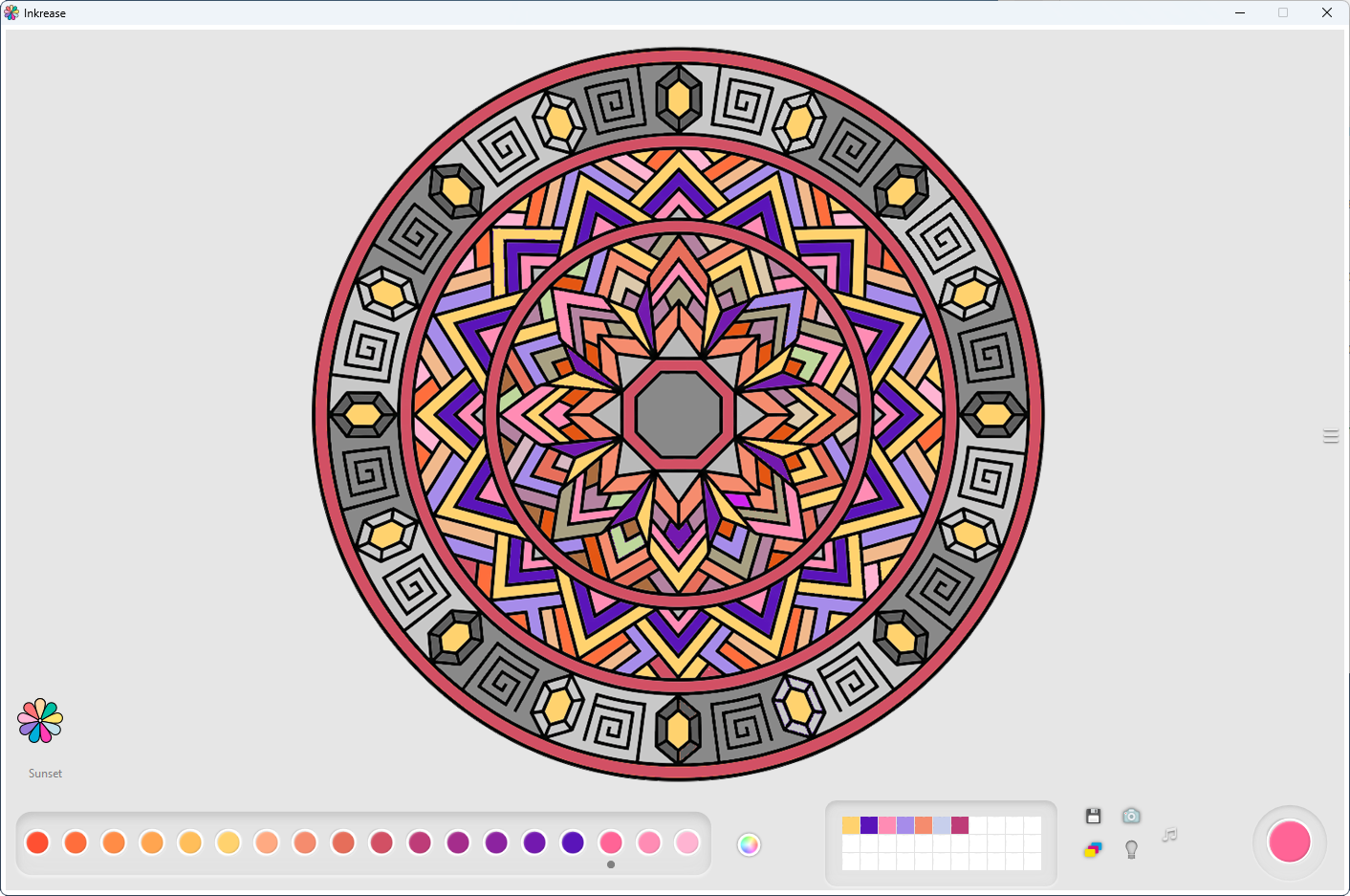
Interface
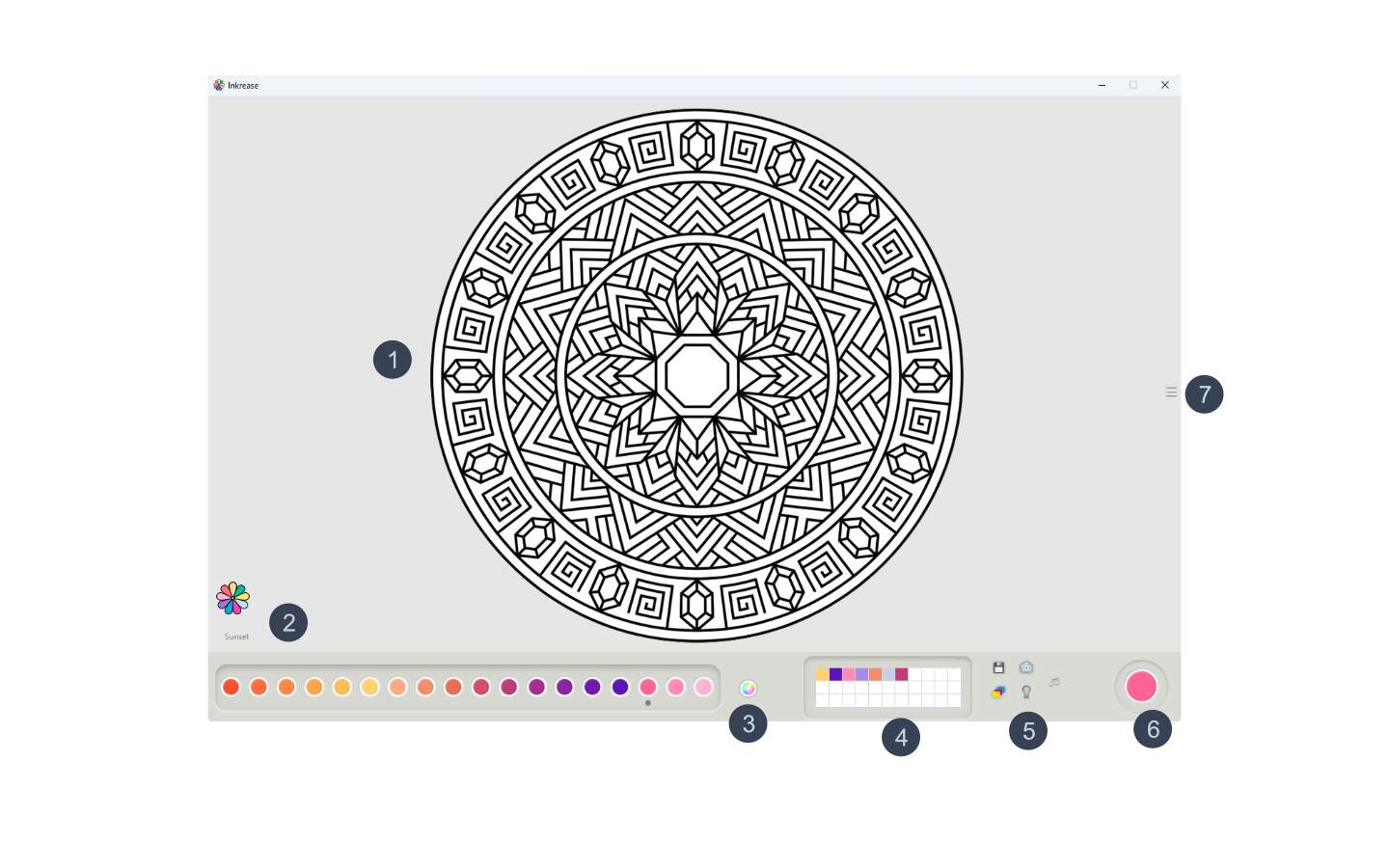
- 1Figure to paint
- 2Bottom: color palette — the name of the palette in use appears on the left
- 3Change color palette, undo/redo, color picker
- 4Favorite colors
- 5Action buttons
- 6Color in use
- 7Open / close the image selection panel
- 8Recently used colors history
Painting
Left-click on a shape to paint it with the selected color.
Right-click on a shape to erase what you painted and restore the original color.
Zoom & Navigation
- Mouse wheel — zoom in and out from 0.5× to 8×
- Cursor-centered zoom — zoom focuses on the area under the mouse cursor
- Middle mouse button — pan around the image
- Ctrl + 0 — reset zoom and position
- Zoom percentage indicator — displayed on screen while zooming
Favorite Colors
The favorite colors row lets you save and reuse your preferred colors quickly.
- Double-click a square to open the Windows color picker and choose a color to save
- Ctrl + left-click on a square to save the current color to that slot
- Ctrl + right-click on a square to delete the saved color from that slot
- Click a favorite color square to select that color for painting
Inkrease also stores a history of the last 8 colors you used for quick access.
- If no favorite color slot is selected, the sampled color will be stored as the current active color
- If a favorite color slot is selected, the sampled color will be stored in that favorite color slot
- While moving the crosshair over the drawing, the currently pointed color is previewed live in the active color box or in the selected favorite color slot
- To exit Color Picker mode, press Escape or click the Color Picker icon again
Undo / Redo
Inkrease includes a 10-level Undo / Redo system.
- Ctrl + Z — undo the last action
- Ctrl + Y — redo the last undone action
Action Buttons
Save — saves the current drawing to your computer in the location you choose. Saved drawings become part of the Inkrease gallery.
Gallery — shows a gallery with all the drawings you have saved.
Theme — changes the Inkrease visual theme.
Help — opens this user guide.
Music — opens a Spotify playlist with bilateral stimulation music for greater relaxation.
Selection Panel
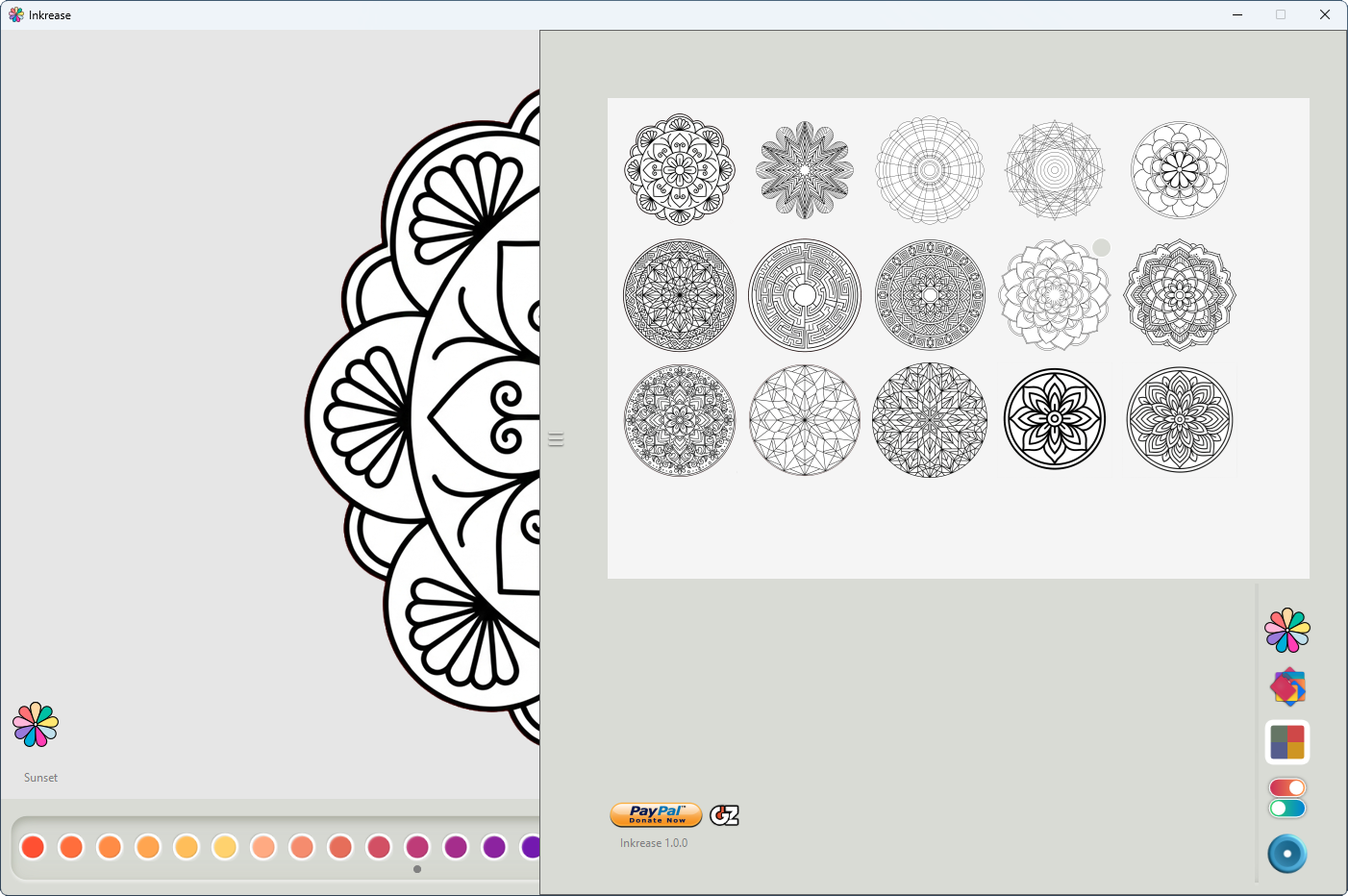
The selection panel shows the images available to paint. Open it using button 7 in the interface.
If an image has a dot in the upper-right corner, it has already been opened and partially painted. When you open it, you will be asked whether to continue painting or start again with a blank image.
The panel also includes a "Load your own image" button. Clicking it allows you to import your own image into Inkrease for painting.
For the best results, it is recommended to use black and white coloring images.
Imported images are added to the same collection as the built-in Inkrease images. When you move the mouse over a user-loaded image, an option to remove it from the collection becomes available.
Gallery
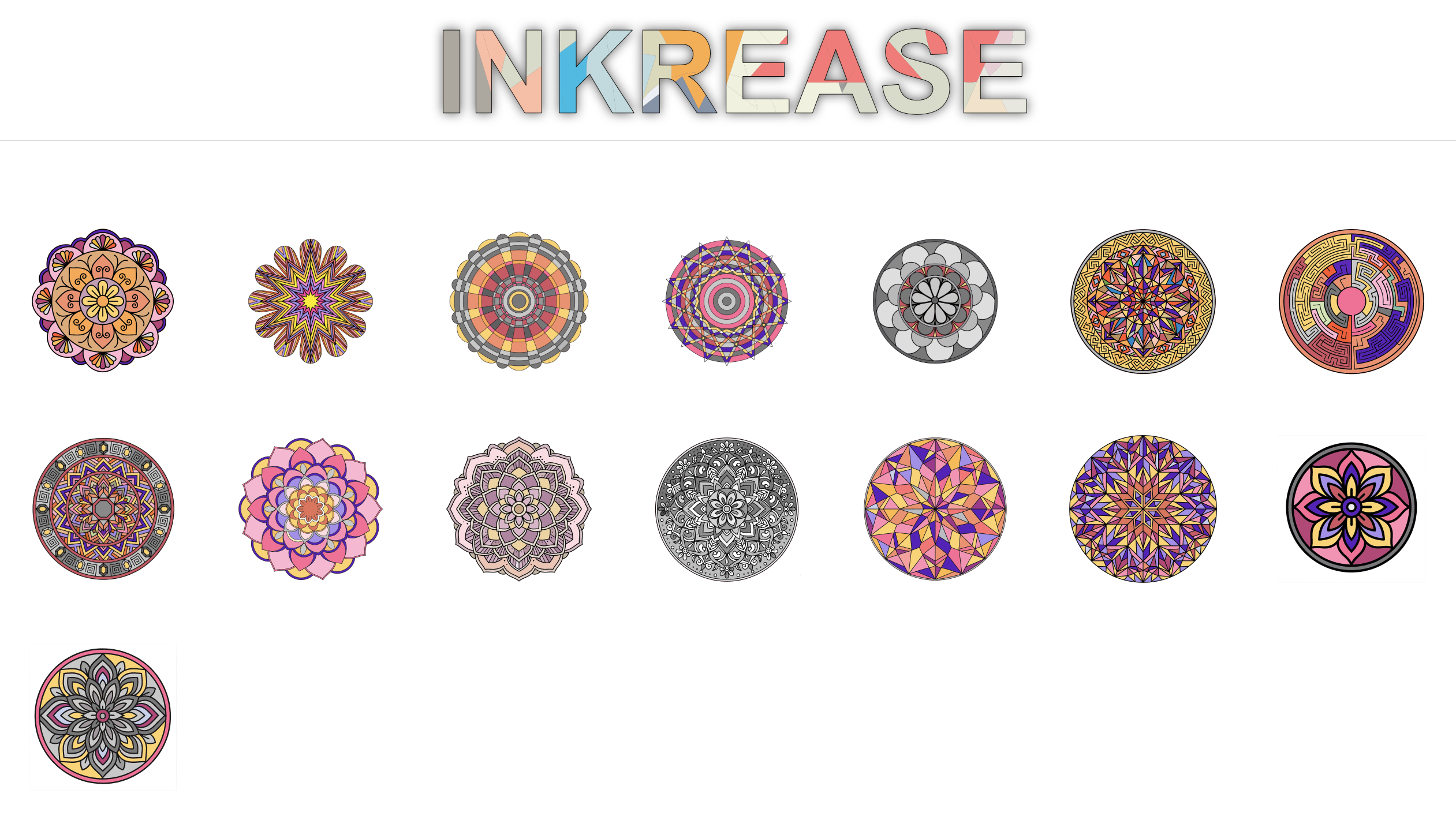
The gallery shows all the drawings you have saved. Use the Gallery action button to open it.
The gallery also includes a maintenance panel for managing saved drawings.
User Images
Inkrease supports painting user-loaded images.
- Import your own images into the application
- Paint imported images like regular Inkrease figures
- Save imported image drawings into the gallery
Web Image Browser
The selection panel includes a built-in web browser, so you can search for coloring images without leaving Inkrease.
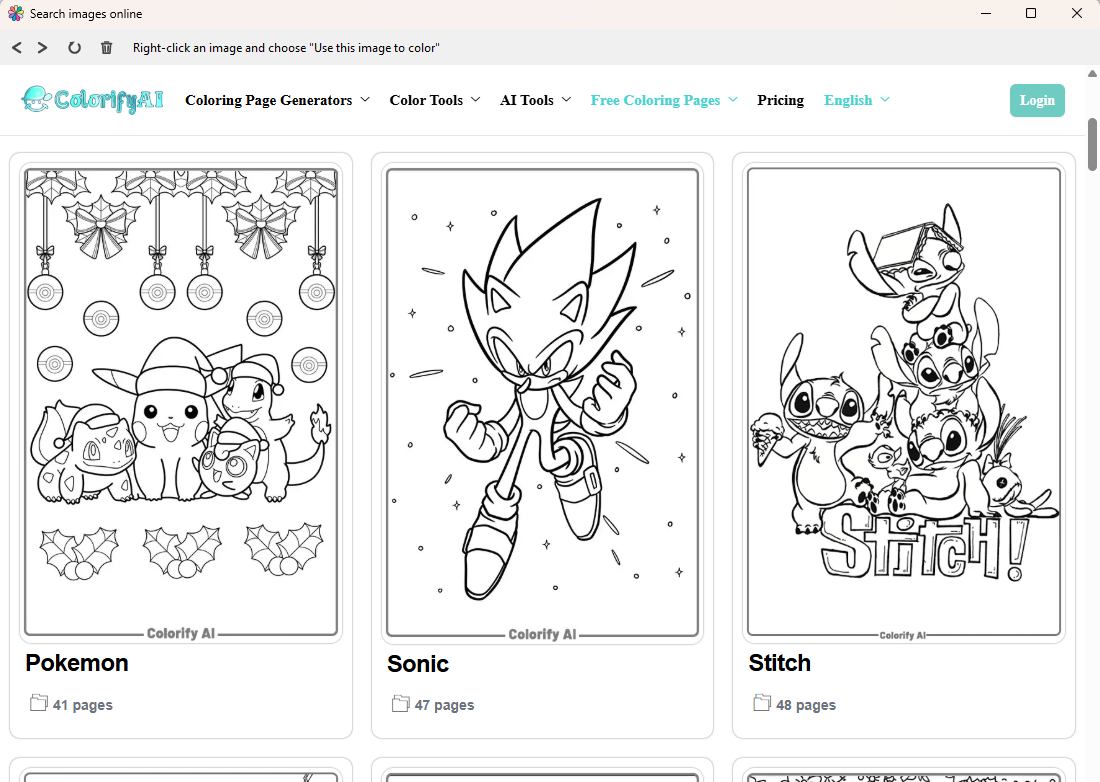
- Right-click any image on a web page to use it directly as a coloring page
- A dedicated button clears the embedded browser's disk cache
Features
- Paint figures to reduce stress, anxiety and improve concentration
- Paint imported user images
- Built-in web image browser to find and import coloring images
- Multiple color palettes
- Favorite colors row — save and reuse up to 10 colors
- History of the last 8 used colors
- Color picker tool
- 10-level Undo / Redo system
- Advanced zoom and navigation controls
- Save drawings to your computer
- Gallery of saved drawings
- Gallery maintenance panel
- Multiple visual themes
- Spotify bilateral stimulation music playlist
- Installer and portable versions
- Windows 10 64-bit, version 1909 or above
- Requires the .NET Desktop Runtime 8
Supporting development
If you find Inkrease useful and would like to support its continued development, you can make a donation via PayPal by scanning the QR code below.

Thank you for using Inkrease.