What is miniToggle?
miniToggle is a Windows 10 and Windows 11 utility that centralizes common system settings in a compact interface: hidden files, dark mode, audio mute, cleanup tools, and Explorer tweaks.
It also includes a launcher panel for quick access to advanced Windows tools such as Registry Editor, Task Manager, Control Panel, Device Manager, and more.
First Launch
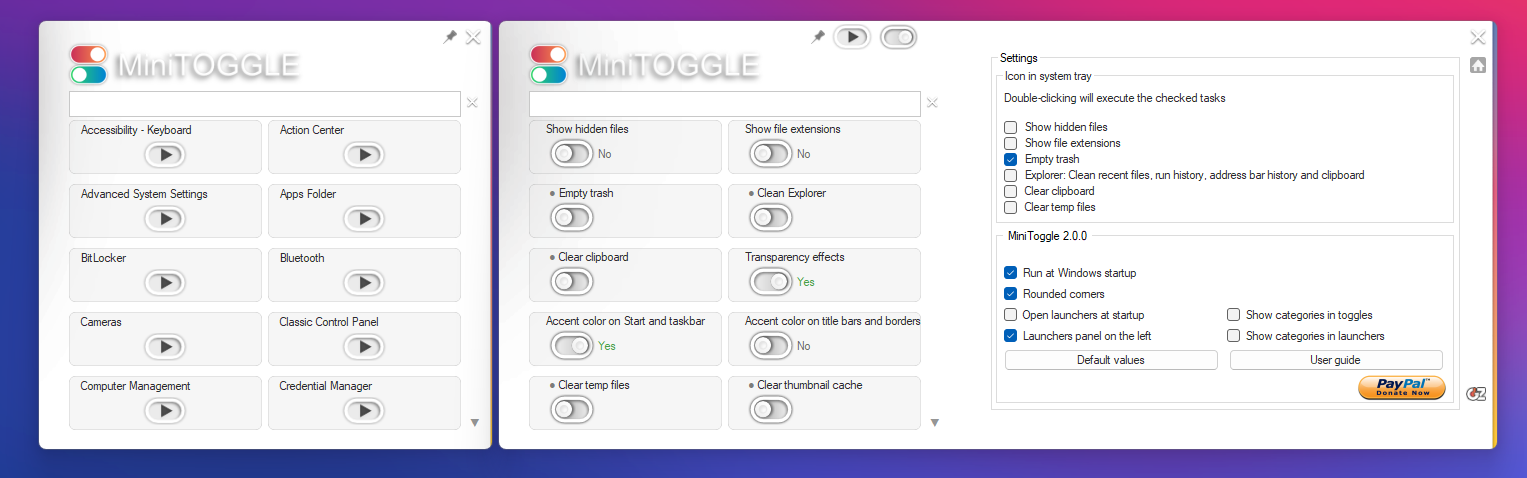
On first launch, miniToggle shows two main areas:
- Toggle Panel — System controls and quick actions
- Settings Section — Application configuration and tray behavior
Each toggle reads its current state directly from the Windows registry at startup. Changes apply instantly without requiring a save action.
Toggle Panel
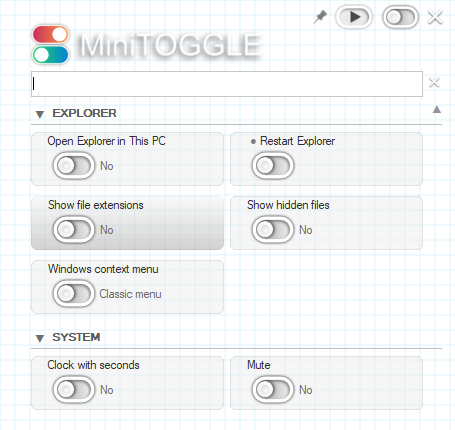
Toggles are grouped into collapsible categories for easier navigation.
If you prefer a simpler layout, disable Show categories in toggles in Settings.
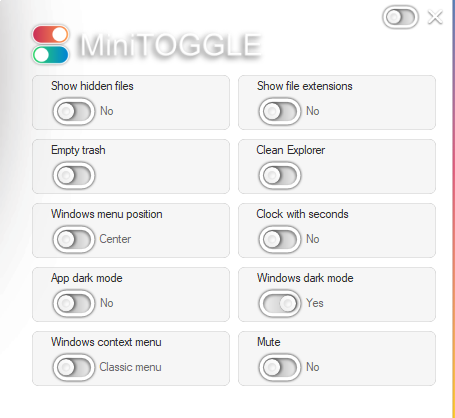
Explorer
- Show hidden files — Displays hidden files and folders in Windows Explorer.
- Show file extensions — Shows extensions like .txt or .exe for easier identification.
- Open File Explorer to This PC — Starts Explorer in “This PC” instead of Quick Access.
- Windows context menu (Windows 11)
- Restart Explorer
Appearance
- Transparency effects — Enables Windows blur and acrylic effects.
- Accent color for Start and taskbar — Applies system accent color to UI elements.
- Accent color for window borders — Applies accent color to window frames.
- Taskbar alignment (Windows 11) — Centered or left alignment.
- Dark mode — Apps (Windows 11)
- Dark mode — Windows (Windows 11)
System
- Mute — Instantly toggles system audio.
- Clock with seconds (Windows 11) — Shows seconds in system clock.
Cleanup
Cleanup actions execute immediately and do not maintain a persistent state.
- Empty recycle bin
- Clean Explorer — Clears recent files, Run dialog history, address bar history, and clipboard contents in Explorer.
- Clean clipboard
- Clean temporary files
- Clean thumbnail cache
- Clean icon cache
Search
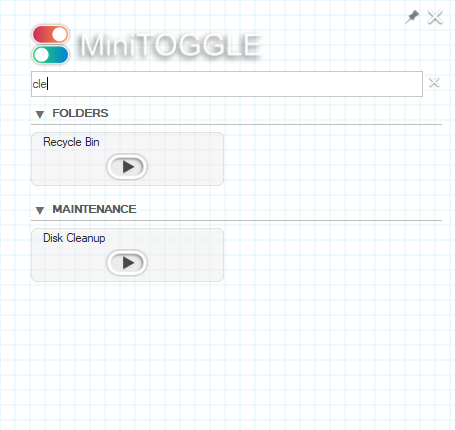
The search bar filters toggles and launchers in real time while typing.
Empty categories are automatically hidden.
Click the X button to clear the filter.
Launcher Panel
The launcher panel can be opened from the ▶ button or system tray menu.
It includes 61 shortcuts grouped into 7 categories:
- Control Panel — System tools
- Network — Connectivity tools
- Administration — System consoles
- Diagnostics — Troubleshooting tools
- Maintenance — Cleanup utilities
- Folders — System locations
- Settings — Windows shortcuts
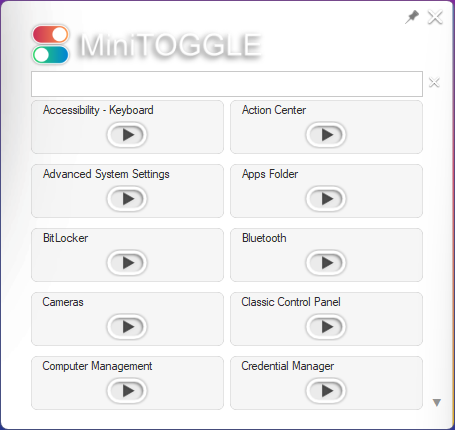
Launchers support drag & drop reordering and live search.
Settings
- Run at Windows startup
- Rounded corners
- Open launchers at startup
- Show categories in launchers
- Launcher panel on the left
- Show categories in toggles
- Reset to defaults
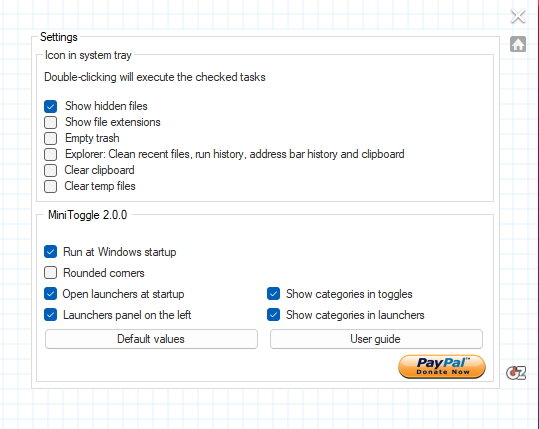
Tray double-click actions allow quick execution of selected toggles.
System Tray
miniToggle continues running in the system tray after closing the window.
The tray icon section lets you choose which actions execute each time you double-click the tray icon. Selected options run automatically on double-click; unselected options open the main window instead.
Tray icon → Exit closes the application completely.
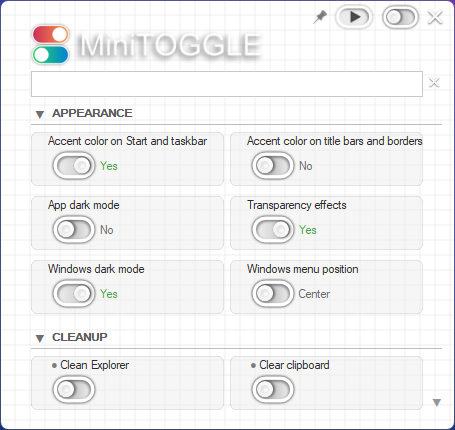
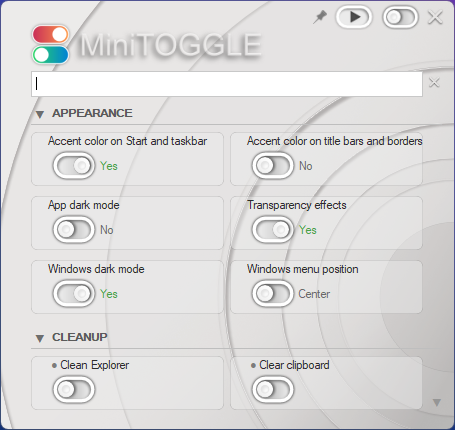
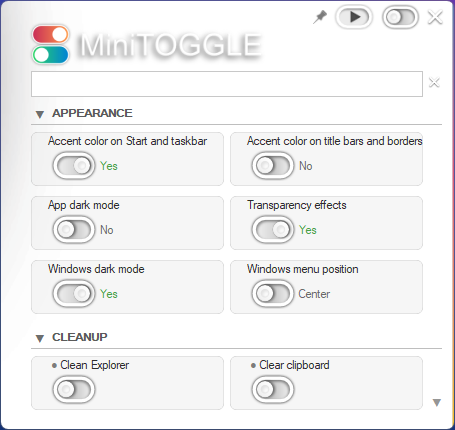
Visual Themes
miniToggle includes 6 built-in themes.
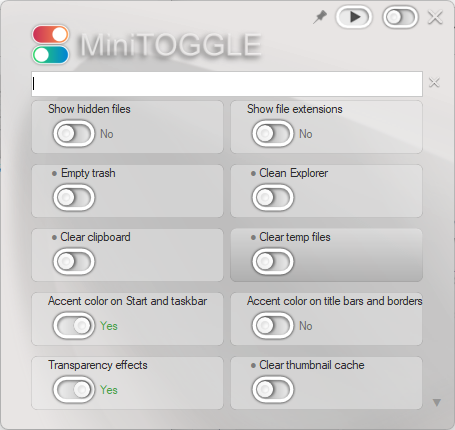
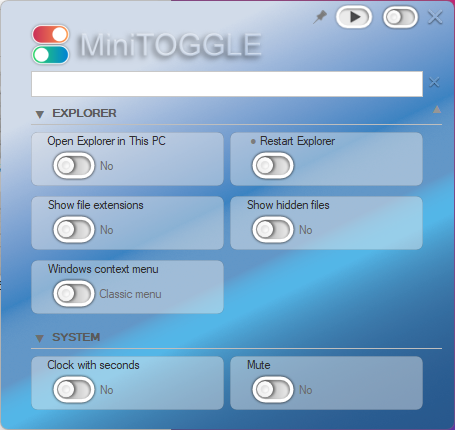
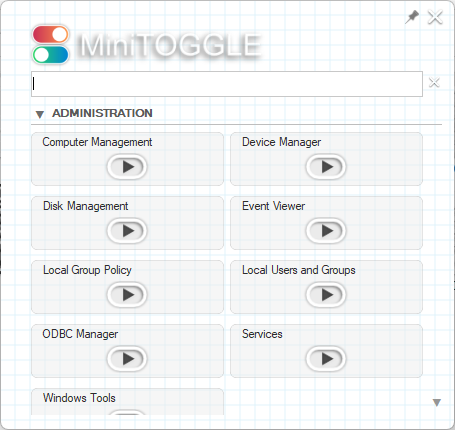
- Alt + T — Next theme
- Shift + Alt + T — Previous theme
Keyboard Shortcuts
- Alt + T — Next theme
- Shift + Alt + T — Previous theme
- TAB — Switch between panels
Reordering Controls
Drag & drop is supported for toggles and launchers.
Layout is saved automatically.
Items can be reordered when they are not shown separated into categories.
Languages
miniToggle automatically adapts to Windows display language.
You can also force a specific language at launch using the -L parameter:
Where xx is one of the following language codes:
es— Spanishen— Englishfr— Frenchde— Germanit— Italianpt— Portugueseru— Russianko— Koreannl— Dutchzh— Chinese
Minimized Startup
Supporting development
If you find miniToggle useful and would like to support its continued development, you can make a donation via PayPal by scanning the QR code below.
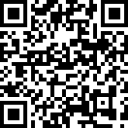
Thank you for using miniToggle.